
If you run sales, your day is calls. A dealer wants a rate. A customer asks you to call back after lunch. Someone says "send me the quotation, I'll decide by Friday". Another says "we'll start after Diwali". By the evening there have been a hundred of these, and you remember the ten loudest.
The rest are the follow-ups that slip. Nobody refuses to buy. You just forgot to call back.
MeetNotes turns your phone calls into notes and a to-do list on their own. Your phone records the call, MeetNotes picks up the recording, and a few minutes later the call is written down: what was discussed, what was promised, and who has to do what. You speak, the to-dos appear. That is the whole idea: voice to to-dos.
What it looks like in a day
Take a sales manager, call him Ravi (an example, not a real customer). He is on the phone from morning to evening and does not have a second to type.
- During the day, every call he makes or takes is recorded by his phone. He does nothing extra.
- After each call, MeetNotes writes the notes: a short summary, callbacks and meetings promised, follow-ups, decisions, issues raised and the to-dos, with who owns each one.
- In the evening, a notification says how many calls he had today and how many items are still open. One tap opens the day report: everything still open across all of today's calls at the top, then each call with its main points.
- Next morning, his To-dos tab has every promise from yesterday, grouped by customer, with the ones already settled ticked off.
Nothing in that list depended on Ravi remembering to write it down.
Step 1: let your phone record calls (Android)
This part is honest and important. MeetNotes does not record phone calls itself. It reads the recordings that your phone's own call recorder saves. So:
- It works on Android only. iPhones do not let an app read another app's recordings folder, so this automatic call sync is not available on iPhone.
- Your phone's call recorder must be switched on. Many Android phones have one in the Phone app's settings (often called "Call recording" or "Record calls automatically"). Some phones do not have it, and in some countries it is turned off by the maker. If your phone does not save call recordings, there is nothing for MeetNotes to pick up.
- Tell people you record calls. Rules on recording calls differ by country and by industry. A simple "this call is recorded for my notes" at the start is good practice. See recording meetings and consent in India.
Step 2: point MeetNotes at the recordings folder
- Install MeetNotes on your Android phone and sign in. Every account starts with 100 free minutes.
- Open Settings, and under Connections tap Auto-process call recordings.
- Tap Add folder and choose the folder your phone saves call recordings in (for example Recordings/Call). If your phone keeps a separate folder for each SIM, add only the ones you want.
- Choose what happens when a new recording arrives: Ask me each time (a notification with Process and Skip) or Process automatically (no question, the notes simply arrive).
Only recordings made after you add the folder are used, and each call uses minutes from your balance. A few settings on the same screen help a busy phone:
- Skip calls shorter than a few seconds or minutes, so missed calls and "I'll call you back" don't use minutes.
- Skip these contacts for family and personal calls. Always process these contacts for your key customers, with no question asked.
- Group repeat calls together, so five calls with the same customer show as one row with a count.
- Day summary of calls, at a time you choose, for the evening notification.
Already have call recordings from before? You can also import any recording by hand, on Android or iPhone.
Step 3: let the to-dos build themselves
Every call's action items land in the To-dos tab. This is where the "never forget" part happens.
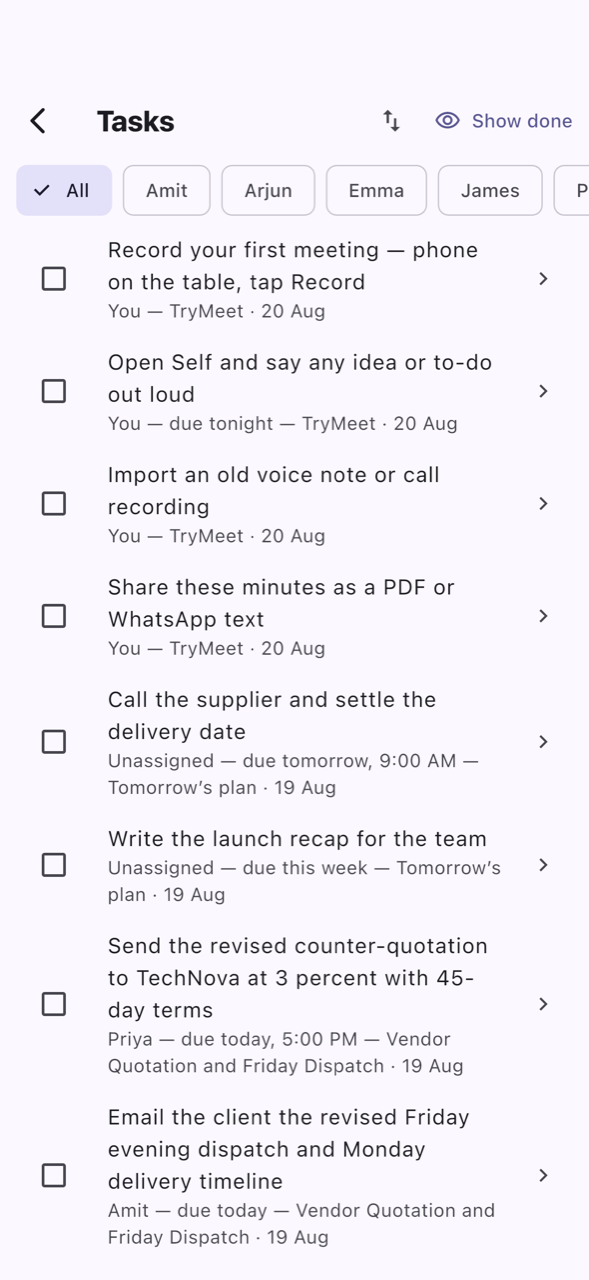
It catches the follow-ups nobody said out loud
People rarely say "please add a task to call me in November". They say "we'll start after Diwali". In the newest version of MeetNotes, the to-do list also picks up these follow-ups that were only implied, like "check back with them after Diwali".
You decide how eager it should be in Settings → To-dos → To-do sensitivity:
| Setting | What becomes a to-do |
|---|---|
| Low | Only clear tasks |
| Medium (the default) | Clear tasks and likely follow-ups |
| High | Everything that might be a task |
If you are on a hundred calls a day and would rather tick off an extra item than miss a customer, choose High. If your list feels crowded, choose Low.
Find a customer's items in a second
Type a customer's name in Search to-dos and you see what you owe them, and what they owe you.
Group by person or by type
Tap Group by in the To-dos tab (it is also in Settings → To-dos) and choose:
- Person: everything for each customer or colleague together.
- Type: Calls & follow-ups, Visits & meetings, Send / share, Payments, Things to do, and Other. Handy at 9 in the morning: do all the callbacks first, then send all the quotations.
Items close themselves when a later call settles them
If you promised "I'll send the revised rate today" and on the next call with the same person you say "I sent you the rate", MeetNotes ticks that item off for you. That is Mark done automatically in Settings → To-dos. Turn it off if you prefer to tick everything yourself.
Step 4: send each person their list on WhatsApp
At the top of the To-dos tab there is a chip for each person. Tap one, and a green bar appears: "Send Priya their 4 open items" (with that person's name and count). Tap WhatsApp, and your phone's share menu opens with a neat list of everything they own, ready to send. Pick WhatsApp and the chat.
The other person does not need MeetNotes. They just get a clear message of what they promised to do.
Step 5: share the call notes with your team
When a call matters to more people (your sales head, the dispatch team, the person who prepares quotations), open the call and tap share:
- Share on WhatsApp (text): the notes as a WhatsApp message, to a person or a team group.
- Share minutes (PDF) or (Word): a proper document, which you can edit first in Word.
- Email minutes to attendees.
The day report can be shared too, as text or as PDF, Word or Markdown. Send it to your manager at the end of the day instead of typing a report.
Calls in Hindi, Hinglish and other languages
Sales calls in India rarely stay in one language. There is no language to choose: a call in Hindi, Gujarati, Tamil, or one that keeps switching between Hindi and English, is written down as it was spoken, and the notes and to-dos come in the language you choose. More on that in transcription in any language.
Not on calls, but in meetings?
The same to-do list fills up from meetings you record in the room, on a site visit or at a client's office. The sales call notes template shows what good notes from a client visit contain, and action items from meetings explains how to make sure they get done.
FAQ
Can MeetNotes turn my phone calls into a to-do list automatically?
Yes, on Android. Turn on your phone's own call recorder, then in MeetNotes go to Settings → Connections → Auto-process call recordings and add the folder where the recordings are saved. Each new call becomes notes, and its action items land in the To-dos tab.
Does MeetNotes record my calls?
No. MeetNotes does not record calls. It reads the recordings your phone's built-in call recorder saves. If your phone does not record calls, there is nothing to pick up, but you can still import any recording by hand.
Does call sync work on iPhone?
No. iPhones do not allow an app to read another app's recordings folder, so automatic call sync is Android only. On iPhone you can import a recording or share one into MeetNotes from another app.
What is to-do sensitivity?
A setting in Settings → To-dos that decides how many to-dos you get from each call. Low keeps only clear tasks. Medium, the default, adds likely follow-ups. High adds everything that might be a task, including follow-ups nobody said out loud.
Can I send someone their pending tasks on WhatsApp?
Yes. In the To-dos tab, tap the person's chip at the top, then tap WhatsApp on the bar that appears. Their open items go out as one message. They do not need MeetNotes to read it.
Does every call use minutes?
Yes. Each call that is processed uses minutes from your balance, the same as a recorded meeting. You can skip short calls and personal contacts in the call settings so only business calls are used.

